Wednesday, 23 October 2013

An Easy Way to Upgrade to Universal Analytics

Last year we launched Universal Analytics, a new technology that allows you to measure customer interactions across platforms and devices. As we announced at the 2013 Google Analytics Summit, we’ve been working on a solution to help you upgrade your existing properties to the new infrastructure without losing any historical data.

Today, we’re announcing the Universal Analytics Upgrade Center, an easy, two-step process to upgrade your existing properties from classic Google Analytics to Universal Analytics.

Once you complete the upgrade process, you can continue to access all of your historical data, plus get all the benefits of Universal Analytics including custom dimensions and metrics, a simplified version of the tracking code, and better cross-domain and cross-device tracking support.

Getting Started

You can upgrade your classic Google Analytics properties into Universal Analytics properties by following these two steps:

Step 1: Transfer your property from Classic to Universal Analytics.
We’ve developed a new tool to transfer your properties to Universal Analytics that we will be slowly enabling in the admin section of all accounts. In the coming weeks, look for it in your property settings.
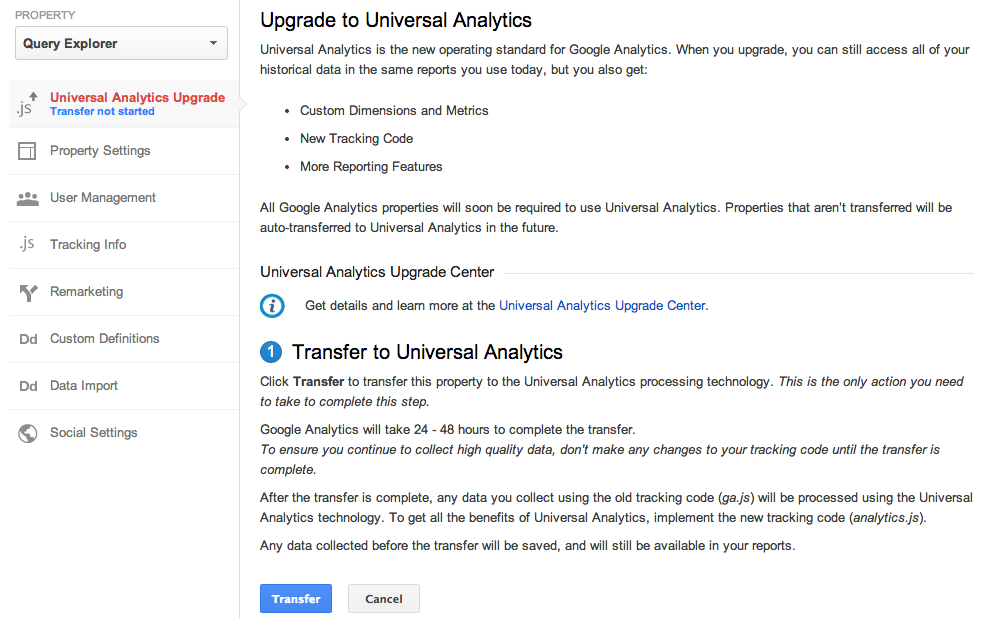


Step 2: Re-tag with a version of the Universal Analytics tracking code.
After completing Step 1, you’ll be able to upgrade your tracking code, too. Use the analytics.js JavaScript library on your websites, and Android or iOS SDK v2.x or higher for your mobile apps.

Universal Analytics Auto-Transfer

Our goal is to enable Universal Analytics for all Google Analytics properties. Soon all Google Analytics updates and new features will be built on top of the Universal Analytics infrastructure. To make sure all properties upgrade, Classic Analytics properties that don’t initiate a transfer will be auto-transferred to Universal Analytics in the coming months.

Upgrade Resources

To answer common questions, we’ve put together the Universal Analytics Upgrade Center, a comprehensive guide to the entire upgrade plan. This guide includes an overview of the process, technical references for developers, and a project timeline with phases of the overall upgrade.

We’ve also included FAQs in the Upgrade Center, but if you need more information, you can also visit the new Universal Analytics Google Group to search for answers and ask more specific questions.

We’re excited to offer you this opportunity to upgrade, and hope you take advantage of the resources we’ve created to guide you through the process. Visit the Universal Analytics Upgrade Google Group to share your comments and feedback. We’d love to hear what you have to say!

Posted By Nick Mihailovski, on behalf of the Google Analytics Team

Thursday, 17 October 2013

Mind the Gap: Improving Referral Information with Universal Analytics

The following is a guest post contributed by Dan Wilkerson, marketing manager at LunaMetrics, a Google Analytics Certified Partner & Digital Marketing Consultancy.

A core issue with measuring social media is that due to the way that traffic migrates around the web, there are lots of situations where we lose referrer information and those visits end up being labeled as 'Direct' inside of our analytics.

This can happen for a variety of reasons, but the most common situations where this kind of erroneous attribution occurs are:
  • When a user clicks an untagged link inside an email
  • When a user visits from a mobile application
  • When a user clicks a link shared to them via an instant message
If a visitor has come to your site previously, Google Analytics will simply apply the same referral information it had for their previous visit, which it retrieves from the UTMZ cookie it previously saved on the visitor's browser. But, if there are no cookies, Analytics has no information, and buckets the visitor into Direct.

Obviously, this is problematic; 'Direct' is supposed to represent visitors who bookmark or directly type in our URL. These users are accessing our site through a shared link, and should be counted as referrals. Thankfully, we have some tools at our disposal to combat some of these scenarios, most notably campaign parameters. But campaign parameters only help with links that you share; what about when a visitor comes to your site and shares the link themselves?

These visits can cause serious problems when it comes time to analyze your data. For example, we offer Google Analytics & AdWords training. Most of our attendees are sponsored by their employers. This means they visit our site, scope out our training, and then email a link to a procurement officer, who clicks through and makes the purchase. Since the procurement officer comes through on the emailed link and has never visited our site, the conversion gets bucketed into 'Direct / None' and we lose all of the visit data for the employee who was interested in the first place. This can compound into a sort of feedback loop - the only data we see would be for individuals who buy their own tickets, meaning we might optimize our marketing for smaller businesses that send us less attendees. In other words, we'd be interpreting data from the wrong customers. Imagine how this kind of feedback loop might impact a B2B trying to generate enterprise-level leads - since they'd only see information on the small fry, they could wind up driving more of the wrong kind of lead to their sales team, and less of the right kind.


For a long time, this has been sort of the status quo. Now, with new features available in Universal Analytics, we have some tools we can employ to combat this problem. In this post, I want to share with you a solution that I've developed to reduce the amount of Direct traffic. We're calling it DirectMonster, and we're really excited to make it open source and available to the Google Analytics community.

What is DirectMonster?
DirectMonster is a JavaScript plug-in for Google Analytics that appends a visitor's referral information as ciphered campaign parameters as an anchor of the current URL. The result looks something like this:


When the visitor copies and shares the URL from the toolbar, they copy that stored referral information along with it. When someone without referral information lands on the site through a link with those encoded parameters, the script decodes that information as campaign parameters to pass along to Google Analytics, waits until Analytics writes a fresh UTMZ cookie, and then ciphers, encodes, and re-appends the visitors current referral information. It also appends '-slb' to the utm_content parameter. That way, those visits can be segmented from 'canonical' referrals for later analysis, if necessary. The visitor who would have had no referral information now is credited as being referred from the same source as the visitor who shared the link with them. This means that visits that normally would have been erroneously segmented as 'Direct / None' will now more accurately reflect the channel that deserves credit for the visit. 

At first, this might seem wrong - shouldn't we just let Analytics do its job and not interfere? But, the fact is that those visits aren't really Direct, at least not in its truest interpretation, and having 'assisted referrer' channel information gives you actionable insight. Plus, by weeding out those non-Direct scenarios, your Direct / None numbers will start to more accurately represent visitors who come to your site directly, which can be very important for other measurement and attribution. It's actually better all the way around. After all, if a Facebook share is what ultimately drove that visitor to your site, isn't having that information more valuable than having nothing at all? This way, you'll have last-click attribution for conversions that otherwise would have simply been bucketed as Direct. Of course, you won't have the visit history of the assisting referrer, but... well, more on that soon.

We've been fine-tuning this on our site for the past few months, and we've been able to greatly enhance our conversion attribution accuracy. In our video case study, I mentioned that we enhanced attribution by 47.5%; since that time, we've seen the accuracy of our data continue to climb; whereas before, we were seeing 'Direct / None' account for 45.5% of our conversions, it now accounts for just 20.6% - a decrease of 54.7%. Better yet, look at what it's done to all of our traffic:


We've gone from having about 20-25% of our traffic come in 'Direct / None' to just under 15%, and I anticipate that number will continue to fall.

DirectMonster and Universal Analytics
One of the coolest features that Universal Analytics has given us is Custom Dimensions. If you're not familiar with them, take a minute and read the Google Developer Resources page about what they are and how they work. Although initially designed for the asynchronous code, Universal Analytics has allowed us to put DirectMonster on steriods. 

In our Universal implementation, we store the visitors CID as a visit-level custom dimension, and we add their CID to the hashed parameters we're already storing in the anchor of their URL. 

When a visitor comes through on a link with a CID that differs from their own, we capture the stored CID as the Assisted Referrer. Then, we can open up our Custom Reports later on and view what visitors were referred to our site by whom, and what they did when they got there.

What does this mean? If a celebrity tweets a link to your product, you can discover exactly how many visitors they referred, and how much revenue those visitors generated. 

By cross-referencing the Assisted CID for single-visit 'Direct / None' purchases, you can discover the true visit history of a conversion.

Since it takes advantage of advanced Universal Analytics functionality, DirectMonster 2.0 requires some advanced implementation as well. Unlike its cousin, you'll need to adjust your Analytics tracking code to include a few functions, and you'll need to configure the Custom Dimensions you'll be storing a visitors CID and assisted referrers CID inside of. For a full reference on how to get either version of DirectMonster and configure it for your site, check out our blog post covering the topic in detail here or visit our GitHub page and get DirectMonster for yourself. 

I hope that you're as excited as I am about this development and all of the things Universal Analytics is enabling us to do. Think of a use case I didn't mention? Share it with me in the comments!

Posted by Dan Wilkerson, marketing manager at LunaMetrics

Enhancing Linguistic Search with the Google Books Ngram Viewer


Our book scanning effort, now in its eighth year, has put tens of millions of books online. Beyond the obvious benefits of being able to discover books and search through them, the project lets us take a step back and learn what the entire collection tells us about culture and language.

Launched in 2010 by Jon Orwant and Will Brockman, the Google Books Ngram Viewer lets you search for words and phrases over the centuries, in English, Chinese, Russian, French, German, Italian, Hebrew, and Spanish. It’s become popular for both casual explorations into language usage and serious linguistic research, and this summer we decided to provide some new ways to search with it.

With our interns Jason Mann, Lu Yang, and David Zhang, we’ve added three new features. The first is wildcards: by putting an asterisk as a placeholder in your query, you can retrieve the ten most popular replacement. For instance, what noun most often follows “Queen” in English fiction? The answer is “Elizabeth”:


This graph also reveals that the frequency of mentions of the most popular queens has been decreasing steadily over time. (Language expert Ben Zimmer shows some other interesting examples in his Atlantic article.) Right-clicking collapses all of the series into a sum, allowing you to see the overall change.

Another feature we’ve added is the ability to search for inflections: different grammatical forms of the same word. (Inflections of the verb “eat” include “ate”, “eating”, “eats”, and “eaten”.) Here, we can see that the phrase “changing roles” has recently surged in popularity in English fiction, besting “change roles”, which earlier dethroned “changed roles”:


Curiously, this switching doesn’t happen when we add non-fiction into the mix: “changing roles” is persistently on top, with an odd dip in the late 1980s. As with wildcards, right-clicking collapses and expands the data:


Finally, we’ve implemented the most common feature request from our users: the ability to search for multiple capitalization styles simultaneously. Until now, searching for common capitalizations of “Mother Earth” required using a plus sign to combine ngrams (e.g., “Mother Earth + mother Earth + mother earth”), but now the case-insensitive checkbox makes it easier:


As with our other two features, right-clicking toggles whether the variants are shown.

We hope these features help you discover and share interesting trends in language use!

Tuesday, 15 October 2013

New Sample Size Control and Relative Dates Features in Google Analytics APIs

Our goal is for Google Analytics APIs to be as simple to use as possible - so we just released 2 new features that make it even easier to use our APIs.

Relative dates
All Core API and MCF Reporting API queries previously required a start and end date. In the past, apps that displayed recent data - like the last 14 days - would have to manually determine today’s date, determine when 14 days ago was, and format the dates so they could be used.

To make things easier, we’ve added support for relative dates! You can now specify NdaysAgo as a value of either the start or end date. So the date range of the last 14 days from yesterday can now be expressed as:

start-date=15daysAgo&end-date=yesterday

Using these values will automatically determine the date range based on today’s date, allowing apps to always display the data for last 14 days (or whatever time period you’d like!).

Sample size control
In certain cases, data may be sampled. To simplify setting and reporting the impact of sampling, we’ve added a couple new sampling related features.

First, we added a new query parameter to set the level of sampling. Developers can now specify whether reports should be faster or be more precise.

Second, we added 2 new fields to the API response:

  • sampleSize - The number of samples that were used for the sampled query.
  • sampleSpace - The total sampling space size. This indicates the total available sample space size from which the samples were selected.
     

With these 2 values you can calculate the percentage of visits that were used for the query.

For example, if the sampleSize = 201,000 and sampleSpace = 220,000 then the report is based on 91.36% of visits.


Together, these values allow developers to see exactly how much data was used to calculate the sample.

Getting Started
There are two easy ways to get started: you can read our reference guide on the new relative dates feature, or check out our docs on the new sample size control query parameter and
sample size API response data. As always, you can stay up to date using our change logs
.

Friday, 11 October 2013

Using a permanent URL to share Custom Attribution Models & Custom Channel Groupings

The need to customize and fine-tune your marketing measurement solutions becomes a key discriminator in unlocking additional value which might have been missed when applying out-of-the-box views on your data. For this reason, the Multi-Channel Funnel Analysis within Google Analytics Attribution provides the ability to configure content based channel groupings, as well as customized attribution models. This allows you to better reflect how partial credit is assigned to the marketing efforts driving your conversions. Having the ability to develop these customized assets is great, and now you are able to easily share them with your organization, your customers, or your audience. Here is how sharing a custom channel grouping, or custom attribution model works: 

Step 1 - Build a Custom Attribution Model
Building a custom model is easy. Just go to the Model Comparison Tool report in the Attribution Section of Conversions. In the model picker you can select ‘Create new custom model’, which opens the dialog to specify rules which can better reflect the value of marketing serving your specific business model. As an example, we can develop a model to value impressions preceding a site visit higher within a 24 hour time window. We also set the relevant lookback window to 60 days, as we know our most valuable users have longer decision and decide cycles:

Click image for full-sized version
Ensure you opt-in the Impression Integration, enabling Google Display Network Impressions and Rich-Media interactions to be automatically added to your path data through the AdWords linking. Don’t forget to also check out the recorded webinar from Bill Kee, Product Management Lead for Attribution, providing more details on how to create a custom model.

Step 2 - Access the Model in Personal Tools & Assets Section
In the admin section you can now look at your personal tools & assets. The newly created model will show up in the ‘Attribution Models’ section. You can find custom channel groupings you created under Channel Groupings.


The table shows all assets available, and a drop-down allows you to ‘share’ these assets through a link.


Step 3 - Share the Link - Done!
From the drop-down Actions menu select ‘Share’, and a permanent link to the configuration of this object is generated. This link will point to the configuration of the shared asset, allowing anyone with a GA implementation and the link to make a copy of the asset config, and save it into their instance of GA. You maintain complete control over who you share your assets with. 


Include the link to your brand-new attribution model asset in an email, IM message, or even a Blog Post, such as this one.

Happy Customizing!

Posted by Stefan F. Schnabl, Product Manager, Google Analytics

Thursday, 10 October 2013

No Code Required: Auto-Event Tracking with Google Tag Manager

We’re excited to announce that Google Tag Manager has publicly launched Auto-Event Tracking, which lets you measure events happening on the page without writing HTML or Javascript. Those of you measuring events in Tag Manager today will already have minds racing with the possibilities - skip ahead to the screenshot. Everyone else, read on.


As sites become more dynamic and want to understand users’ site experiences in more detail, business owners need to know more: how long are visitors staying on a particular page? How are they interacting with interactive elements like image carousels? How many are clicking the Contact Me button? How many are clicking outbound links? Increasingly, site analytics are incomplete without answers to questions like these.

Unfortunately, until now, answering these questions required adding custom Javascript code to your website to tell Google Analytics when the event occurred. Google Tag Manager users also needed to modify the HTML of each page where they wanted to track an event. That means every time you want to track something new, or change the way you track something, you need to modify site code directly (or, in some cases, ask another colleague to do it for you.) And slower deployment of measurement campaigns directly impacts your ROI.

With Google Tag Manager’s launch of Auto-Event Tracking, we’re excited to announce a solution that provides the power of event tracking without needing to write code. By using the new Event Listener tag, you can tell Tag Manager when you want to listen for events, and then write detailed rules for what to do when an event happens. See an example of listening for form submits here:


Once you have your event listener set up, you can have tags fire based on form submits using a rule that looks for the event gtm.formSubmit. (Of course, Tag Manager supports more than form submits: it also includes clicks and timer events.) You can also make sure you’re getting the right form by using our Auto-Event Variable macros that let you narrow things down with attributes like the element ID and the form target.

The end result: you can deploy event tracking to your site and send event tracking data to Google Analytics without adding any code to your site. You can deploy measurement campaigns faster, and not writing custom code makes your solutions more robust.

Of course, it’s easiest to see the whole picture by walking through a full example. Check out the following resources for more:
We’re looking forward to getting your feedback - let us know what you think!

Posted by Lukas Bergstrom, Google Tag Manager PM

Wednesday, 9 October 2013

Browsing, Sharing and Importing Analytics Insights Now Just A Click Away

Earlier this year, we announced the Google Analytics Solution Gallery with a collection of custom reports, segments and dashboards selected by our team to help new users get started. Today we are excited to open the platform to the public and allow any of our millions of users across the globe to share their favorite insights via the revamped Google Analytics Solutions Gallery. 


In addition to opening the platform for public submissions, we have also worked to integrate the browse, import and share functionality directly into your account via “Share” and “Import” buttons. So whether you are using your favorite dashboard to get a quick view of your site performance or working to set up a new segment, sharing and importing via the Solutions Gallery is just a click away. 


The gallery currently enables you to browse, share and import Segments, Custom Reports, Dashboards and Bundles of up to 20 perma-linkable templates. More information on how to do so is available in our help center. 

In the future, we look forward to enabling the seamless sharing and importation of everything from filters to attribution models, to custom channel groupings so keep an eye out for developments in this space and let us know what you think are the most important things to share in the comments!

Posted by Joshua Knox, Google Analytics team